In this story
The moment an old phone is about to leave your hands, the trouble usually isn't the device itself. It's several interlocking things arriving at once: photos still syncing in iCloud, an Apple Watch still paired, a repair configuration that may not be finished, an eSIM still inside the device, and the account's trusted device list still holding it. Do any one step too early, and the cost may land on your photos and account access rather than on the old machine. The most typical wrong move is thinking, "Let me just delete the photos clean before handing it over." If the old device is signed into iCloud with an Apple Account, manually deleting items is permanent deletion — contacts, calendars, reminders, documents, and photos disappear from iCloud servers and all connected devices at once [1]. That isn't emptying a device. That's erasing content at the account level.
So order matters more than the individual actions. What handing over an old phone really requires is moving the data out first, then handling the account, the erase, and the trusted devices in sequence. Below, the two situations — "old phone still in hand" and "old phone already gone" — are separated, because the two paths run in almost opposite directions.
Back up and migrate first, then touch the account and the erase
When the old phone is still in hand, the first step is to create a backup. A backup copies and saves the information on the old device, and when you replace the device you can use it to transfer that information to the new one [1]. Skip this step, and every later "clean it out" action carries risk.
The migration method depends on the old device's system version. If the old device runs iOS 11 or later, Quick Start can automatically transfer information to the new device; if it runs iOS 10 or earlier, use iCloud, iTunes, or the Finder to migrate [1]. Quick Start has several practical conditions: both devices are occupied, so you need to set aside several minutes when you won't need the old device; the old device must be connected to Wi-Fi with Bluetooth on; during the transfer both devices must stay near each other and plugged in to power, and transfer time varies with network conditions and the amount of data [2]. If the new device is managed by a school or business (Apple School Manager or Apple Business), you can't use Quick Start to transfer data from the current device [2], so check this before you start.
There's another easily overlooked prerequisite: if the new device changes your phone number, add additional trusted phone numbers to your account first, or you may lose access to the account [1]. Check this before changing numbers and before the handover; don't assume you'll still be able to verify through the old number afterward.
Repair status is another item to check before handing over the device. If an item in an iPhone's or iPad's Parts and Service History has Finish Repair next to it, that repair must be finished before you can trade in the device [1]. In other words, an unfinished repair isn't something you "hand over for the next owner to deal with" — it directly blocks trade-in eligibility.
Before erasing, clear these boundary items
At the step of removing personal information, the actions need to be ordered by dependency. After confirming the backup exists: if an Apple Watch was paired, unpair it first; if there's an AppleCare plan, you can cancel it or transfer it to the new owner [1]. Then sign out of iCloud, iTunes, and the App Store. On iOS 26 or later, signing out asks you to choose Erase this [Device] or Sign Out But Don't Erase; on iOS 18 or earlier the path is to enter your Apple Account password and then turn it off; on iOS 10.2 or earlier you sign out of iCloud and iTunes & App Store separately [1]. If you're switching to a non-Apple phone, also deregister iMessage [1].
Only then comes the erase: in Settings, go to General, then Transfer or Reset [device], then Erase All Content and Settings. The erase clears cards added for Apple Pay, photos, contacts, music, and apps, and turns off iCloud, iMessage, FaceTime, Game Center, and other services; but content in iCloud is not deleted by erasing the device [1]. These two things must be kept distinct: erasing the device clears the local copy, deleting iCloud content is a separate matter — and that latter thing is exactly what must not be done by manual deletion.
If you're selling a device that uses eSIM, the erase asks whether to erase the device and the eSIM profile together, and you should choose the option that erases both [1]. After the erase, Find My and Activation Lock turn off [1]. The final step is to remove the old device from the trusted device list [1].
There are two more practical preparations before going to the store. First, make sure you know your Apple Account password; trading in an iPhone at an Apple Store may require it, and confirming or resetting it to a password you know in advance saves time [1]. Second, if Stolen Device Protection is enabled, changing your password at the store is likely to have a one-hour security delay [1] — worth handling in advance rather than discovering at the counter that you have to wait.
When it's already handed over, don't treat a password change as wiping the phone
If the old phone has already been sold or given away, Apple suggests first contacting the new owner and asking them to erase all content and settings using the official steps [1]. Changing the Apple Account password does not delete personal information already stored on that device — that's a different function from preventing the new owner from deleting your information from iCloud. Don't assume that because you changed the password, the old device's data has been cleaned. When someone else's device is involved, clarify ownership and communicate the handover arrangements first.
A lost or stolen device doesn't follow the ordinary sale handover process; it should go through Apple's Stolen Device help and Find My flow, and you shouldn't copy the normal sale steps of turning off Find My and unlinking. This article discusses devices you actively sell, give away, or trade in; it doesn't merge device recovery and normal handover into one checklist.
If you decide to keep the old phone for yourself, then no handover to another person has occurred. On iOS 26 and later, signing out offers the option to keep device data, but before choosing it you should check what data stays [1]. There's no need to immediately erase the old phone just because "the new one arrived, so the old one should be wiped"; conversely, once you've decided to give it to someone else, you also can't treat signing out while keeping data as having cleaned it.
Don't reverse the order
Back to the opening scene: photos still in iCloud, the watch still paired, the repair configuration unfinished, the eSIM still in the device, the trusted device list still holding it. These things constrain each other, but they aren't unsolvable — the solution is to acknowledge they have an order. Back up first, migrate next, only then handle the account and the erase, and finally remove the trusted device. Photos can't be cleaned by manual deletion, because when signed into iCloud with an Apple Account, manual deletion permanently removes them from the servers and all connected devices [1]; the correct path is to let backup and migration move the data out, not to do deletion on the old phone.
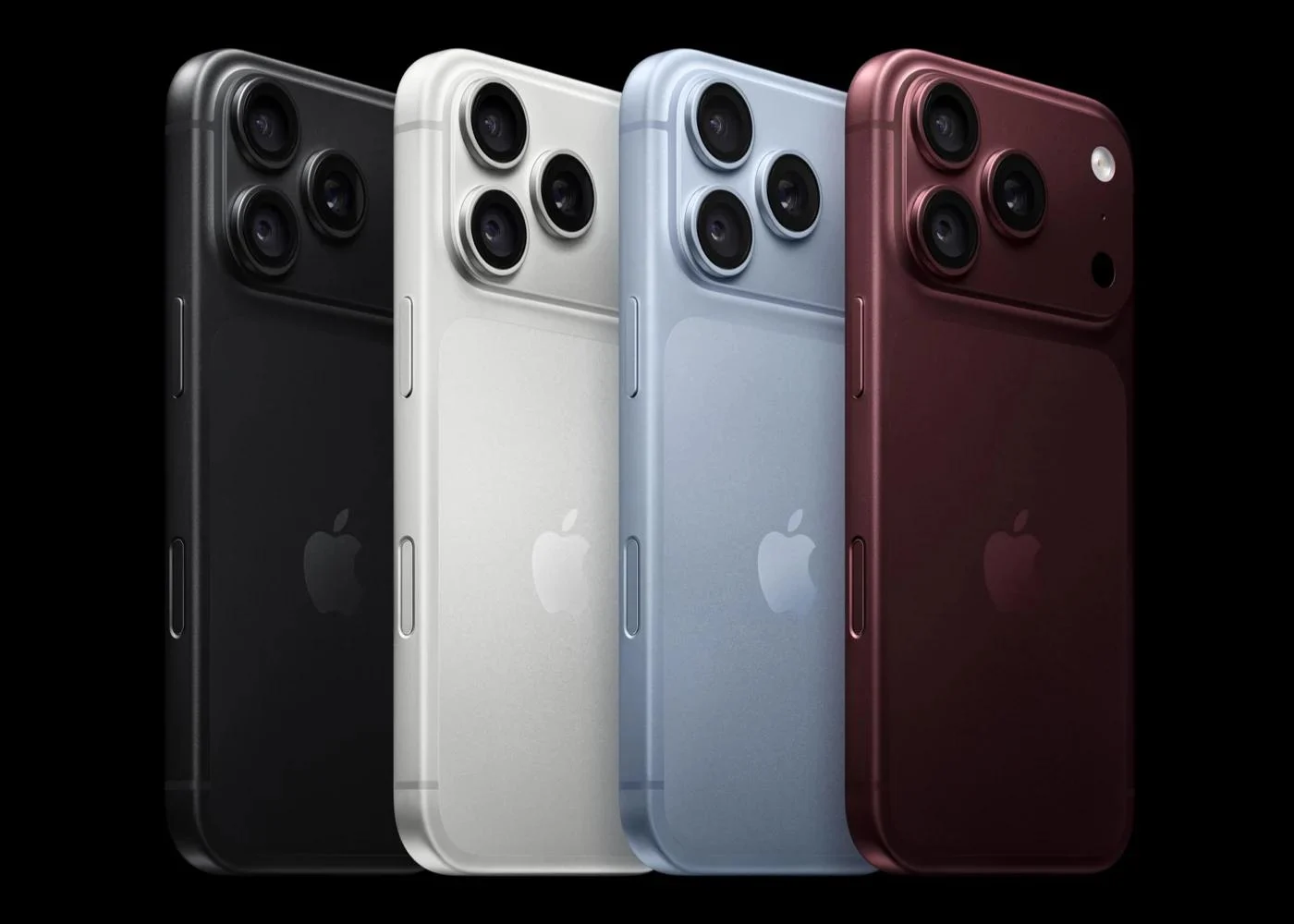
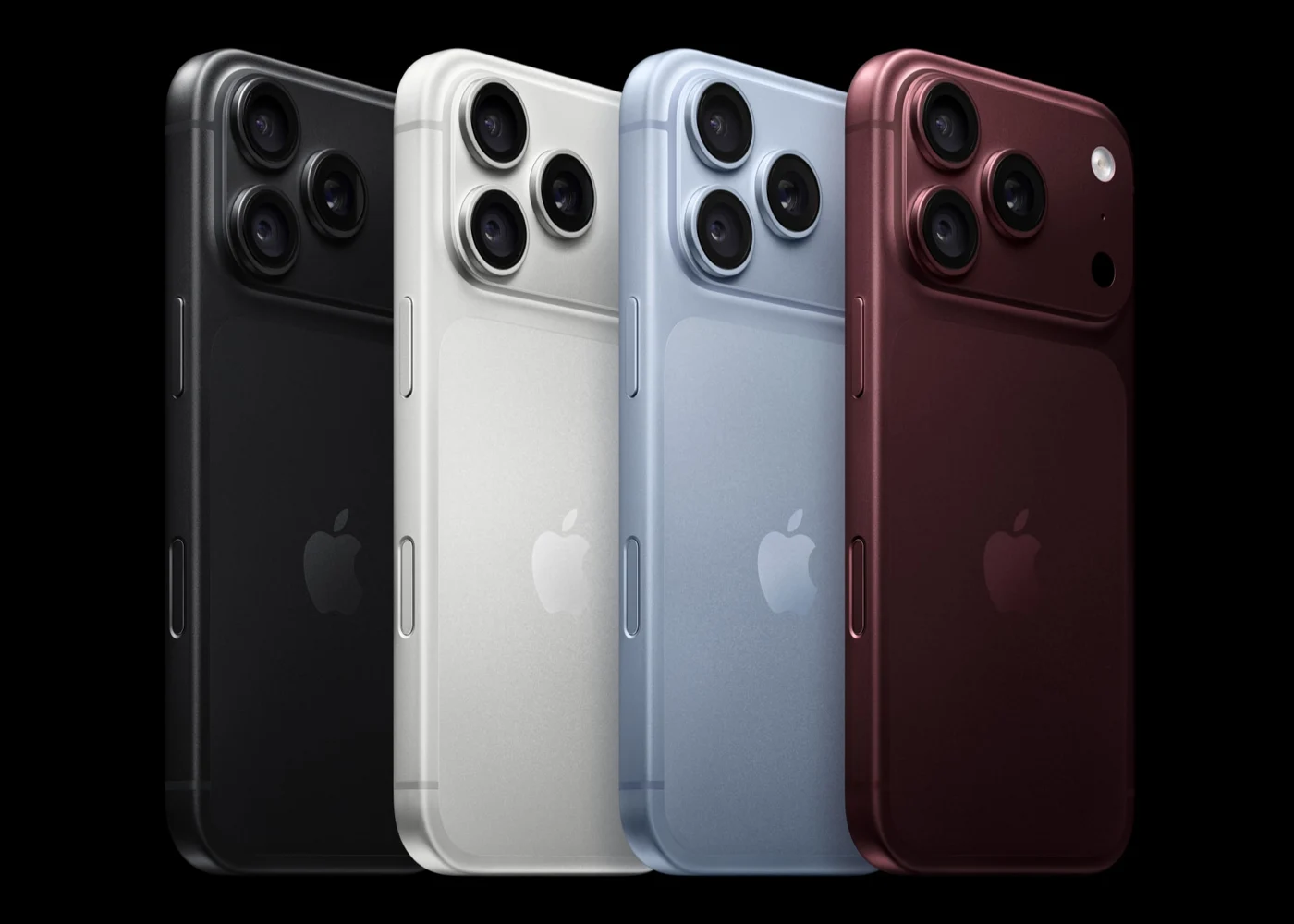
The timing of a new launch makes people rush. On Friday, September 18, iPhone 18 Pro, Apple Watch Series 12, Apple Watch Ultra 4, and AirPods 5 arrived in Apple Store locations worldwide, and in-store you can get help with trade-in, payment option questions, and new device setup [3]. But that report only confirms the launch date and the types of assistance available; it doesn't confirm trade-in amounts, and it can't be used to infer stock at every store [3]. So what you can actually control in advance is still your own sequence: whether you remember the password, whether the repair configuration is finished, whether the watch is unpaired, whether the eSIM is erased, whether the trusted device is removed. Get these right, and handing over the old phone is just handing over a device — not handing over part of your account access.
The pre-handover confirmation can be split into three parts. The first looks at the new device: whether important data and the services you need daily are already usable. The second looks at the old device: whether it has been signed out of and erased according to the official process for its system. The third looks at the account and services: whether trusted devices, the watch, and related plans have been handled according to actual need. The three records answer different questions; one screenshot of the new phone's home screen can't substitute for all of them.
This is especially true for synced photos. Seeing photos appear on the new device easily creates the intuition that "the old copy can just be manually cleared." But a deletion during sync affects iCloud and connected devices, and can't be understood as two unrelated local files [1]. If your goal is simply to hand over the old phone, use the official erase process for handing over a device, and avoid deleting synced material item by item. This article doesn't perform any deletion for you, and doesn't suggest test-deleting important photos just to check.
The eSIM also deserves a separate check. Apple requires choosing to erase the device and the eSIM profile in the selling scenario, but that isn't proof that carrier fees or new-device service are already arranged [1]. New device activation, number changes, and service migration should be confirmed with the carrier; don't rush to empty the old phone while still depending on it to receive verification codes. Backup, account access, and communication arrangements are related, and the actual order should first satisfy your usage needs.
In-store trade-in also involves device condition. The Finish Repair mentioned in the documentation is a repair-completion notice in Parts and Service History; it shouldn't be read as whether a repair bill has been paid [1]. If that notice appears, check the official repair instructions or get support first. Any estimate a platform gives also isn't the final transaction amount; this article hasn't verified your device condition or quote, so it won't promise "handle it this way and you'll sell it for more."
If you're not in a hurry to hand over the phone, you can check these items completely first and then decide when to hand it over. If you're in a hurry to use trade-in service, you should check the account, repair, and pairing situation even earlier, rather than compressing the handling time to the moment before the counter. Being willing to leave a little more time for migration confirmation is about arranging both the old-phone handover and continuous account use — not a demand to keep the old device indefinitely.
Mentioned in this story
These links lead to official or retailer pages. We currently earn no affiliate commission from them. Check the destination for regional availability, configuration and pricing.
iPhone 18 Pro View official specifications ↗